62 ClickUp Automations for three teams. Watch every one run.
ClickUp is a work-management app: tasks, projects, forms, docs and dashboards in one place. A well-built Workspace does more than store tasks. When a request arrives, a deadline passes or a step is finished, it assigns the next person, sets the date, posts the note and flags what is late, so nobody has to chase it.
I set up 12 processes for three made-up teams: a design agency, a property management office and a software product team. Each one has a working Form and a simulator that runs sample tasks through the real Automations, here in your browser. Need this for your team, or hiring someone who knows ClickUp? Get in touch.
How to use this page
- Pick a team. New to ClickUp? Start with the agency.
- Pick a sample task, such as “Big brand job, late Friday”, or fill in the team’s Form with your own answers.
- Press Run it. Watch each Automation fire, or stay quiet because its Conditions aren’t met, with the time it would happen. Days are fast-forwarded.
Short on time? Each process opens with The problem and What I built in plain words. The Automation cards and Build notes are the detail a ClickUp admin would check. Words you may not know
- Processes, each in its own List
- 12
- Automations you can watch fire
- 62
- Sample tasks to run them on
- 34
- Automations with Conditions, each seen firing and held back
- 32/32
Are these real teams?
No. Fernhill Studio, Cedar Row Property Management and Tallyway, and everyone who works there, are made up, so every List and Automation can be shown end to end and tried by anyone. The setups use ClickUp’s real Triggers, Conditions, Actions and features, checked against ClickUp’s help center, so each one can be rebuilt as written in a real Workspace. Four of the processes have been: their panels show screenshots from that ClickUp Workspace. Nothing on this page sends anything or keeps what you type.
Who built this
I’m Nick Soderstrom, a project and operations lead. ClickUp is one of the project tools I work in, alongside Asana, Monday, Jira and Notion, and I build CRM and workflow automations too (see the other case studies). This page and its simulator were built by directing AI, like the projects on my AI Projects page.
ClickUp words in plain English (23)
- ClickUp
- A work-management app: tasks, projects, docs, forms, goals and dashboards in one place. Teams use it to plan work, track who is doing what and see what is late.
- Workspace
- A company’s whole ClickUp account: its people, projects and settings.
- Space, Folder, List
- How work is nested. A Space is a big area such as Client Delivery. A Folder groups related Lists, such as one client’s project. A List holds the tasks of one process, such as Project Requests.
- Task, subtask
- One piece of work, with an owner and a due date. A subtask is a smaller piece inside it.
- Status
- Where a task is in its process: New request, In progress, Done. Each List has its own statuses, in four groups: not started, active, done and closed.
- Custom Field
- An extra box on every task in a List for the team’s own information, such as Budget or Unit number. A Dropdown field offers fixed choices; a People field holds a person.
- Automation
- A rule ClickUp runs by itself: when something happens (the Trigger), and if the task matches (the Conditions), do these things (the Actions).
- Trigger, Condition, Action
- The three parts of an Automation. Trigger: “Status changes to Client review.” Condition: “Priority is Urgent.” Action: “Assign the reviewer.”
- Assignee, follower
- The assignee is the person who has to do the task. Followers get notified of changes without owning it.
- Priority
- ClickUp’s four flags: Urgent, High, Normal, Low.
- Tag
- A short label on a task, such as small-budget, that filters and Automations can use.
- Form
- A web form that creates a task from each response, with the answers in Custom Fields.
- Template
- A saved task, List or Folder to copy, with its subtasks and checklists already in it.
- Checklist
- A to-do list inside one task, for small steps that don’t need their own owner.
- Dependency (waiting on, blocking)
- A link that says one task can’t start until another is done. When the last blocker is done, the task is unblocked.
- Recurring task
- A task that creates itself again on a schedule, such as every month, or when the previous one is closed.
- Views: List, Board, Gantt, Calendar, Workload
- Different ways to look at the same tasks: rows, cards in columns by status, a timeline with dependencies, a calendar, and each person’s load.
- Sprint
- A fixed stretch of work, usually two weeks, from the Sprints ClickApp. Each Sprint is a List in a Sprint Folder.
- ClickApp
- A feature a Workspace owner switches on or off, such as Sprints, Time Tracking or Tasks in Multiple Lists.
- Dashboard, Goal
- A Dashboard is a page of charts and lists built from tasks. A Goal is a target with measurable parts, such as “95% of requests answered in a day”.
- Doc
- A ClickUp document, such as a handbook or an SOP, kept next to the work it describes.
- Guest
- Someone outside the team, such as a client, given access to only what they need.
- Chat channel
- ClickUp’s built-in team chat. Automations can post a message to a channel.
Fernhill Studio
Fernhill Studio designs brand identities and websites for clinics, restaurants and small B2B companies, usually eight to twelve projects at once. Requests came in by email and Instagram DM, client approvals sat in inboxes for a week, and launches slipped because nobody noticed the one blocker still open. The founder wanted one place for all of it, where a new request, a waiting client or a late launch shows up on its own, without a project manager chasing each one by hand.
- Processes
- 4
- Automations
- 23
- Sample tasks
- 12
- Where
- 11 people in Portland, OR, clients across the US
The sample team
- Priya Nair Founder and creative director (Workspace owner)
- Sam Ortiz Account manager
- Jo Adeyemi Project manager (owns ClickUp)
- Maya Brooks Web lead
- Theo Lindqvist Brand lead
- Lena Cho Designer
- Kenji Ward Developer
- Dana Whitfield Client: marketing manager, Juniper Dental · Guest
Fernhill Studio and its clients are fictional. The people, budgets, dates and links are samples.
How the Workspace is laid out
ClickUp nests work in Spaces, Folders and Lists. This is Fernhill Studio’s sidebar. Each process below lives in one List, with its own statuses, Custom Fields and Automations. Pick a card to open that process.
- 01Project intake8 Automations · Project RequestsForm → routed, answered in a day
- 02Client review rounds6 Automations · DeliverablesDraft → client approval
- 03Launch plan4 Automations · Launch planBlockers cleared → live
- 04Retainer requests5 Automations · Retainer RequestsSmall request → done this week
Fernhill Studio Workspace
- Sales & IntakeRequests and proposals. Members only; no guests.
- Project Requests01
- Proposals
- Client DeliveryOne Folder per client project, created from the Folder template “Website project”. Clients are guests with access to their own Folder only.
- Studio OpsRetainer clients and internal work.
- Retainer Requests04
- Studio admin
Dashboard
Studio pulse
Pinned for Priya and Jo; reviewed in the Monday studio meeting.
Goals
Q4 · Faster first replies
In the Goal Folder “Studio 2026”, owned by Sam.
- Requests answered within one business day 95%
- Every request has a Budget and Service set Done
Q4 · Launches on the planned date
Owned by Jo. The task target counts launch tasks closed.
- Launch tasks closed on or before their due date 6 launches
- Signed revenue $240,000
Docs
- Delivery handbookHow a project runs, review rounds, what counts as a change order. Linked from every Deliverables List.
- Launch runbookDNS, redirects, analytics and the go-live checklist, page by page.
- How we use ClickUpStatuses, fields, naming and which Automations exist, with an owner for each.
Every List’s statuses (4 Lists)
- Project Requests
- New request (Not started group)
- Qualifying (Active group)
- Discovery call (Active group)
- Proposal sent (Active group)
- Won (Done group)
- Not a fit (Closed group)
- Deliverables
- To do (Not started group)
- In progress (Active group)
- Internal review (Active group)
- Client review (Active group)
- Changes requested (Active group)
- Approved (Done group)
- Delivered (Closed group)
- Launch plan
- Waiting (Not started group)
- Ready (Active group)
- In progress (Active group)
- Live (Done group)
- Cancelled (Closed group)
- Retainer Requests
- Requested (Not started group)
- Scheduled (Active group)
- In progress (Active group)
- Client check (Active group)
- Done (Done group)
- Cancelled (Closed group)
The Form, working
Fill in Fernhill Studio’s ClickUp Form as if you were a prospective client, and press Send request. Then pick what happens next and press Watch the Automations run, which appears once you submit, to see what 01 · Project intake does with your answers. Nothing is sent or stored.
Submitted
Thanks. Sam will reply within one business day.
A ClickUp Form, rebuilt for this page
How the Form is set up in ClickUp’s Form view (4 notes for builders)
- Answers become fieldsEach question is mapped to a Custom Field in Form view, so Automations and Dashboards can use the answer. Free text only where no rule reads it.
- Conditional logicTimeline is hidden when Service is Ongoing support. Hidden questions stay empty, and no Automation depends on them.
- No assignee on the FormForm view can assign every submission to one person. Left blank on purpose: the Automation assigns, so the rule lives in one place.
- SpamThe Form is public. A required email and dropdowns cut most junk; anything that gets through is archived from the Needs a reply view.
Pick a process, pick a sample task, press Run
Each tab below is one List and its Automations. Read The problem and What I built for the short version. Then pick a sample task and press Run it: the activity log lists what people do and every Automation that fires, with the time it would happen, and the Automation cards tick off as they fire.
For ClickUp builders: each card reads as it does in the Automations manager. The simulator follows ClickUp’s rules: Conditions must all be true, Actions run top to bottom, date Triggers fire at 4 AM, and Every… skips tasks in a Done or Closed status. No Action here starts another Automation, so nothing depends on chaining. New to the words? Open the decoder.
Project intake
Every request lands in one List, routed to the right lead and answered within a day.
The problem
Requests arrived by email, Instagram DMs and the contact form, and sat until someone happened to read them. A $70,000 rebrand waited four days once. Small jobs under the studio’s minimum got the same long discovery call as everything else.
What I built
One ClickUp Form on the website creates a task in Project Requests with the service, budget and timeline as Custom Fields. Automations give Sam a reply-by date, bring in the right lead, flag big budgets to Priya and small ones for a polite no, and raise the alarm if a request is still untouched a day later. When a deal is won, the kickoff task is created for delivery.
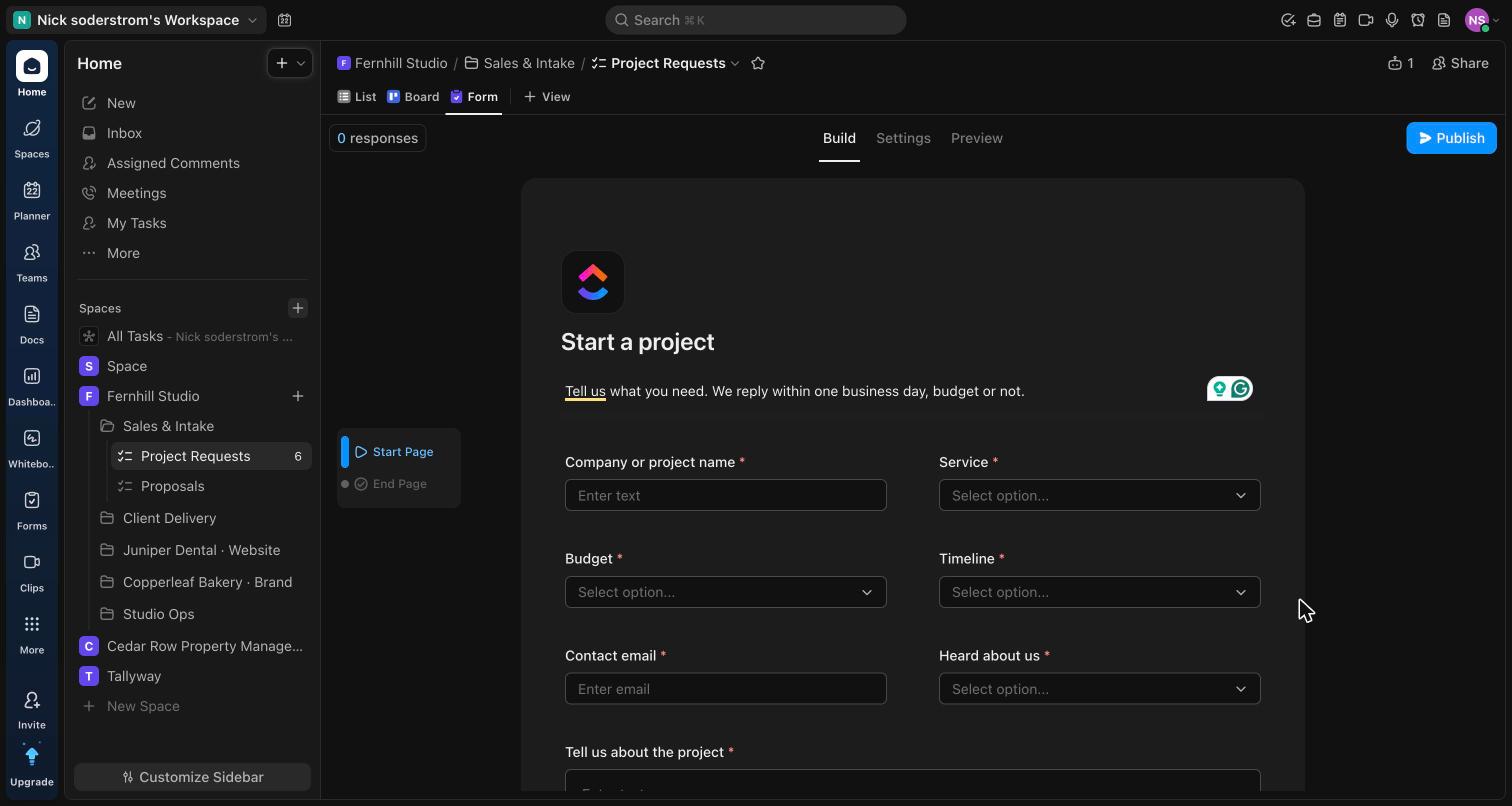
- FormStart a projectConditional logic: the Timeline question only shows when Service is not Ongoing support.
- TemplateProject kickoffTask template applied to the kickoff task: contract, deposit invoice, kickoff call, access to hosting, as subtasks.
- DocReply templatesThe first-reply emails Sam sends, one per Service, plus the polite no for small budgets.
Statuses
- New request (Not started group)
- Qualifying (Active group)
- Discovery call (Active group)
- Proposal sent (Active group)
- Won (Done group)
- Not a fit (Closed group)
The List’s Automations as they read in ClickUp’s Automations manager. Each one gets a green tick when it fires in the run, and a dash when its Conditions stop it.
- AutomationReply-by date and owner
- When
- Task or subtask created · Created from the Form “Start a project”
- Then
- Change due date 1 day after trigger date
- Change assignees Reassign to Sam Ortiz
Sam answers every request, so the reply has one owner. The due date is the promise on the website: a reply within a day.
- AutomationWebsite work: bring in Maya
- When
- Task or subtask created · Created from the Form “Start a project”
- If
- Service is not equal to Brand identity
- Service is not equal to Ongoing support
- Then
- Change followers Add Maya Brooks
- Add a comment @Maya Brooks new website request from
Task name:Service,Budget,Timeline. Anything Sam should ask on the first call?
Two “is not equal to” Conditions, because one Condition with two values would require the field to differ from both at once.
- AutomationBrand work: bring in Theo
- When
- Task or subtask created · Created from the Form “Start a project”
- If
- Service is equal to Brand identity
- Then
- Change followers Add Theo Lindqvist
- Add a comment @Theo Lindqvist new brand request from
Task name:Budget,Timeline.
- AutomationBig budgets to Priya
- When
- Task or subtask created · Created from the Form “Start a project”
- If
- Budget is equal to $60k+
- Then
- Change Priority to High
- Change followers Add Priya Nair
- Add a comment @Priya Nair $60k+ request from
Task name(Service). Sam is on the first reply; join the discovery call?
- AutomationUnder the minimum: the polite no
- When
- Task or subtask created · Created from the Form “Start a project”
- If
- Budget is equal to Under $10k
- Then
- Change tags Add small-budget
- Add a comment @Sam Ortiz under our $10k minimum. Send the “Starter options” reply from the Reply templates Doc, with the freelancer referral list, then move it to Not a fit.
The studio still answers: a fast, kind no keeps referrals coming.
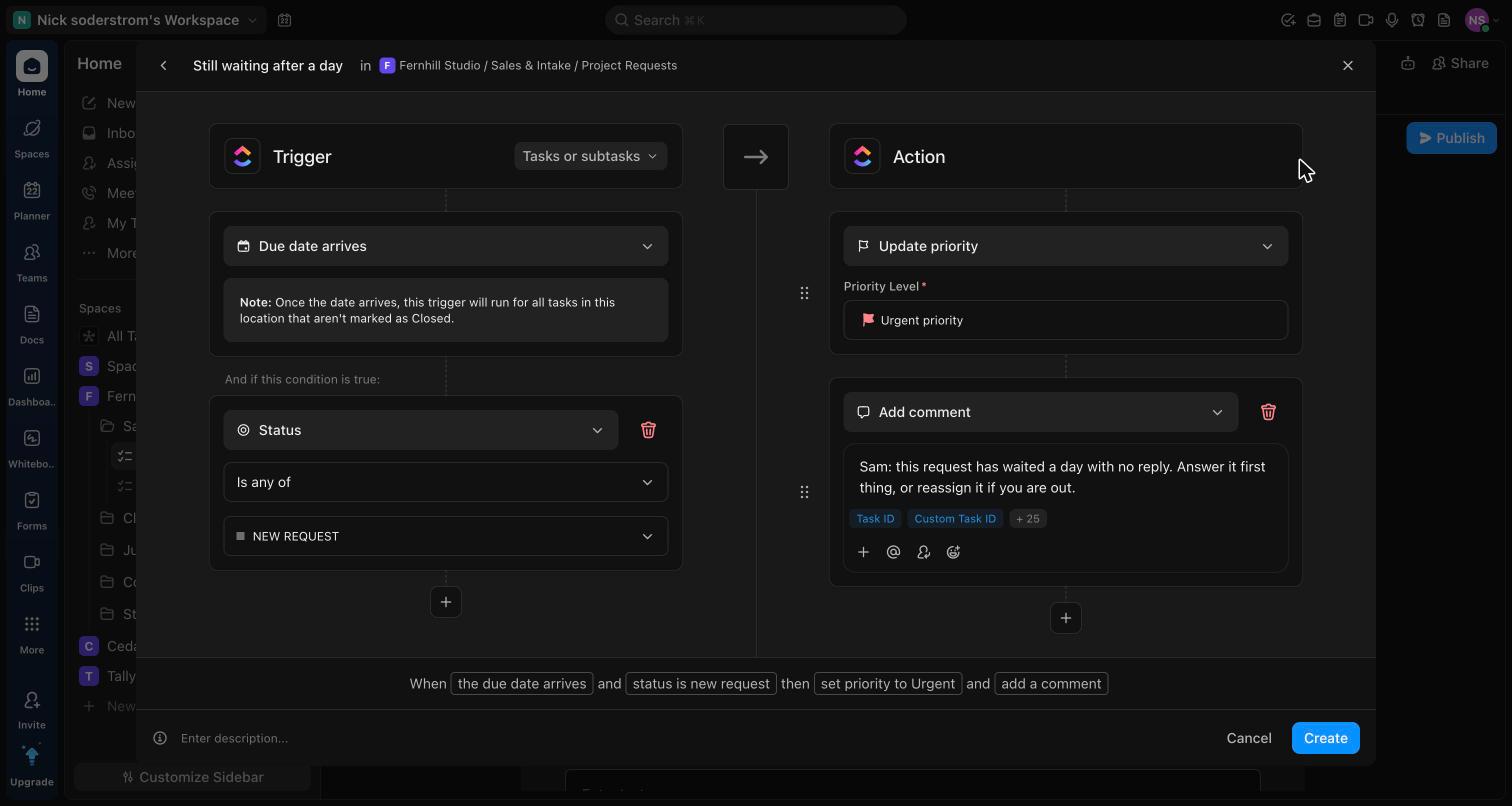
- AutomationStill waiting after a day
- When
- Due date arrives · Fires at 4:00 AM on the due date
- If
- Status is New request
- Then
- Change Priority to Urgent
- Add a comment @Sam Ortiz
Task namehas waited a day with no reply. Answer it first thing, or reassign it if you are out. - Send a channel message #sales: Overdue first reply:
Task name(Service,Budget). DueDue date.
Due date arrives fires at 4 AM, so the nudge is waiting when Sam starts the day. The Status Condition keeps it quiet once anyone has replied.
- AutomationWon: hand over to delivery
- When
- Status changes · to Won
- Then
- Create a task “Kickoff:
Task name” in Client Delivery / Kickoffs from the template Project kickoff, related as Task relationship - Send a channel message #studio: Signed:
Task name,Service. Jo has the kickoff task. - Change due date Remove date
- Create a task “Kickoff:
The kickoff task is linked back to the request, so delivery can read the whole sales history in one click.
- AutomationNot a fit: keep in touch
- When
- Status changes · to Not a fit
- Then
- Change tags Add nurture-list
- Change due date Remove date
Removing the due date keeps closed requests out of the overdue filters and stops the day-later nudge from ever matching.
Running with your Form answers: . What happens next: (your choice beside the Form). Nothing is sent or stored.
- Pick a sample task above, then press Run it. Each line is one change, with the time it would happen: what people do, which Automation fires, and each Action it takes. Days are fast-forwarded.
The same setup in ClickUp
Real screenshots, not mock-ups: this process rebuilt in a ClickUp Workspace (Free plan) from the data on this page, with the same statuses, fields and sample tasks. The company is still fictional, and the sample team are not Workspace members, so tasks show no assignees.
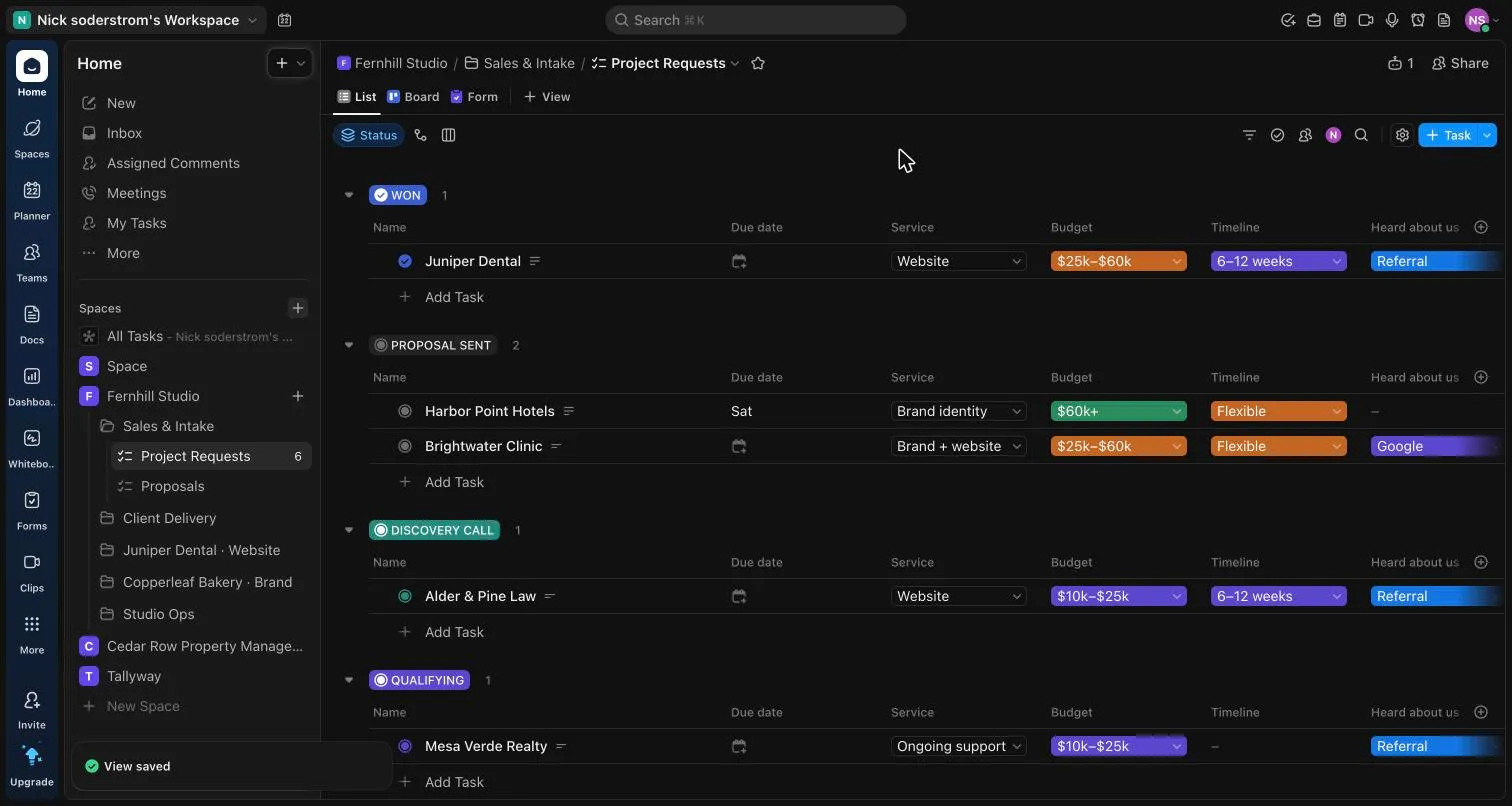 Project Requests in List view
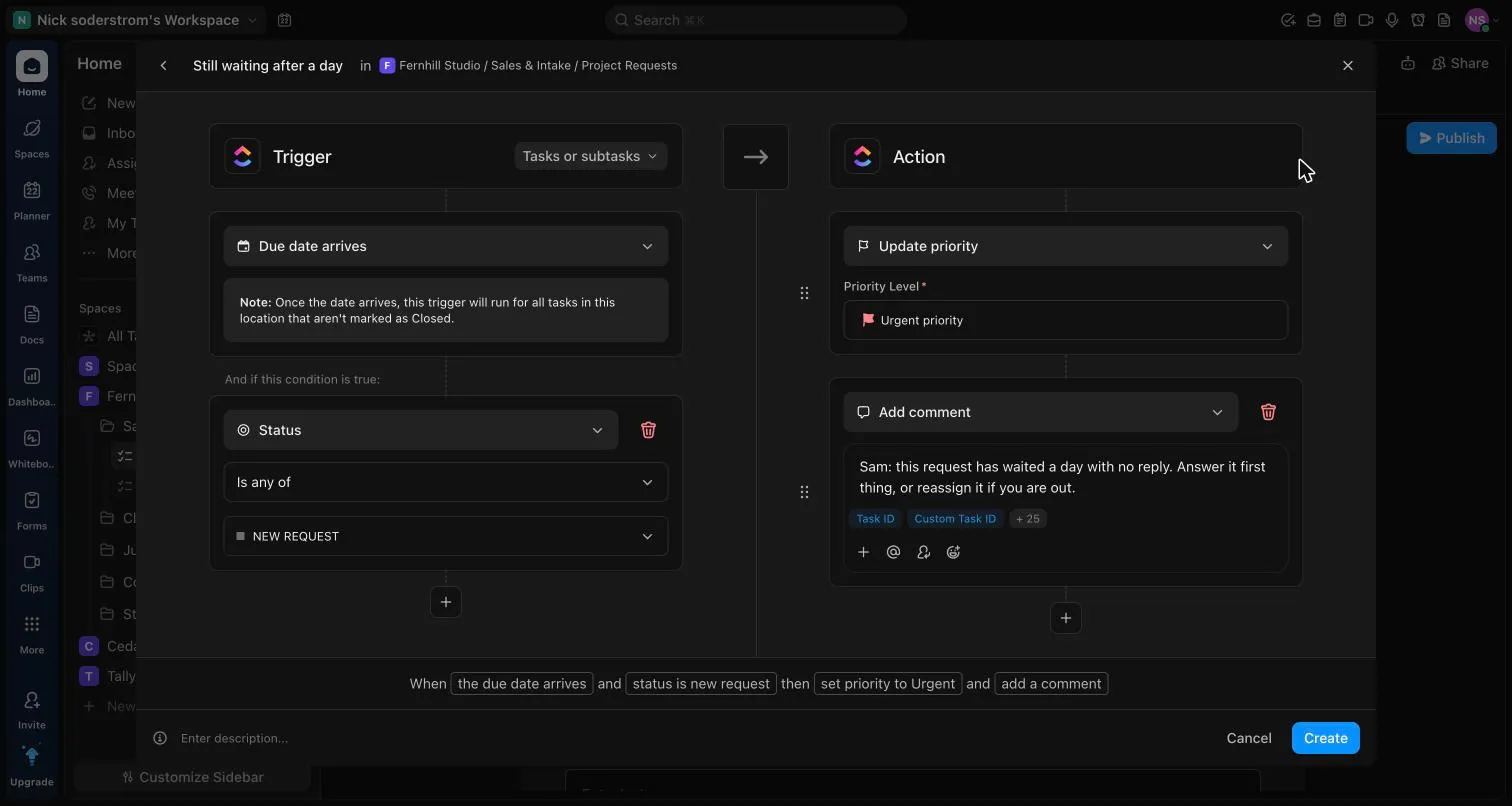 The “Still waiting after a day” Automation
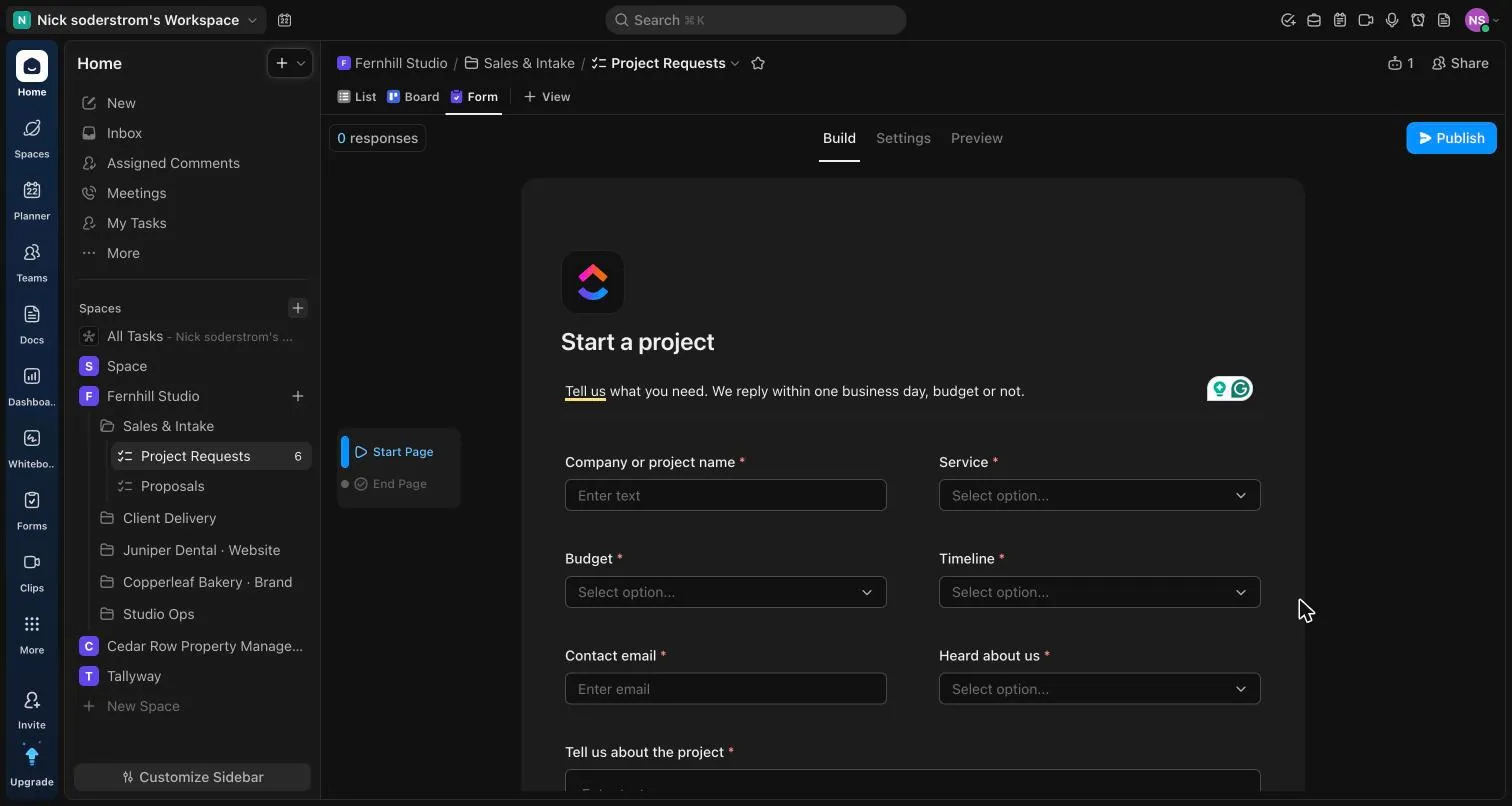 The “Start a project” Form
Build notes
The detail a ClickUp admin would check before trusting this setup. Start with What if… for the unusual cases in plain words. Words you may not know
- What if the request comes in on a Friday night?“1 day after trigger date” counts calendar days, so it is due Saturday and the nudge fires Saturday at 4 AM. It sits at the top of Sam’s Inbox on Monday, marked Urgent. If weekend replies mattered, a second Automation on Every… Monday could re-flag it.
- What if someone picks “Brand + website”?The website Condition matches it (it is neither Brand identity nor Ongoing support), so Maya follows it. Theo is added by hand on the discovery call; the comment says so.
- What if the same company submits twice?Two tasks. Sam merges them with ClickUp’s Merge tasks, which keeps both comment histories. An Automation cannot spot duplicates, so the Needs a reply view sorts by name to make them obvious.
- What if a request is created by hand, not from the Form?The Trigger is limited to tasks created from the Form, so a task Sam adds while on the phone is not re-routed. He sets the fields himself.
- What if a won deal is reopened?Moving it out of Won and back would create a second kickoff task. Jo archives the extra one; Won is rarely reopened, so a guard is not worth the complexity.
- Fields before the Form. Created the Custom Fields at the List level first, so the Form can map each question to a field and Automations can read them. Dropdowns, not free text, for anything an Automation checks.
- The Form. Form view on Project Requests. The company name maps to the task name, the brief to the task description, everything else to its field. Conditional logic hides Timeline for support requests. Assignee left blank on the Form itself, so the Automation decides.
- Automations at the List. All eight live on Project Requests, not the Space, so a new List in Sales & Intake does not inherit them by accident. Each is named for what it does.
- Routing by Condition. One Trigger (Task or subtask created, from the Form) with five Automations, each with its own Conditions. ClickUp runs Automations with the same Trigger at the same time, so none of them depends on another’s result.
- The safety net. Due date arrives with a Status Condition. It only does anything when the request is still New request, so it costs nothing on the days the team is on top of things.
- Hand-off. Won creates the kickoff task in Client Delivery from a task template, linked to the request. Jo owns it from there.
| Custom Field | Type | Notes |
|---|---|---|
| Service | Dropdown | Options: Website, Brand identity, Brand + website, Ongoing support. Drives which lead follows the task. |
| Budget | Dropdown | Options: Under $10k, $10k–$25k, $25k–$60k, $60k+. Ranges, not a number: people answer ranges honestly. |
| Timeline | Dropdown | Options: Under 6 weeks, 6–12 weeks, Flexible. |
| Contact email | ||
| Heard about us | Dropdown | Options: Referral, Google, Dribbble, Instagram, Other. Feeds the pipeline chart on the Dashboard. |
| Deal valuePrivate | Money | Private field, filled by Sam once a proposal is out. Feeds the Signed revenue Goal. |
- Form Start a project
- Embedded on fernhill.example/start. Each question maps to a Custom Field; the company name becomes the task name.
- Board Pipeline
- Grouped by status, cards show Service, Budget and the due date.
- List Needs a reply
- Filtered to status New request, sorted by due date. Sam’s default view.
- Table All requests
- Every field as a column, for the quarterly look at where work comes from.
- A test submission for each Service and each Budget, checking followers, priority and the comment on each.
- A request left in New request overnight: the 4 AM nudge, Urgent priority and the #sales message.
- A request moved to Qualifying before 4 AM: no nudge.
- Won creates exactly one kickoff task, from the template, linked back.
- Not a fit removes the due date and adds nurture-list.
- The Form as a logged-out visitor in a private window, on a phone.
ClickUp features in this build
Client review rounds
Every deliverable knows whose turn it is, and a client who goes quiet gets a nudge on day three.
The problem
Designs went to clients as email attachments. Feedback came back in three threads, nobody knew which version was approved, and a client who went quiet held up a launch for a week before anyone noticed. Extra revision rounds were done for free because nobody tracked how many there had been.
What I built
Each deliverable is a task that moves through review statuses, and each status hands the task to the right person: the creative director for internal review, the client (a guest) for client review, the designer for changes. The client gets three days, then a reminder. A field records the revision round, and the round past the included two flags the account manager to send a change order.
- TemplateFolder template: Website projectCreates the Folder with Deliverables and Launch plan Lists, statuses, fields and these Automations, for every new client.
- DocDelivery handbookWhat a review round is, how to leave feedback in comments, what counts as a change order. Shared with the client on day one.
- ClickAppMultiple Assignees offOne assignee at a time, so Change assignees replaces and “whose turn” is never two people.
Loading the List setup, simulator and build notes…
Launch plan
The go-live task waits on its blockers, starts itself when they clear, and raises a flag two days out if they haven’t.
The problem
Launch day was a group chat. Nobody could say which of the last few jobs were still open, the developer found out on the morning of launch that the client had not signed off the last page, and the go-live checklist lived in one person’s head.
What I built
The Launch plan List is a Gantt chart of tasks joined by dependencies. The go-live task is waiting on four others; when the last one is done, ClickUp unblocks it and an Automation hands it to the developer. On its start date it applies the go-live checklist. Two days before the due date, a still-blocked launch alerts the project manager, and closing the checklist marks the site live.
- DependencyGo live waits on 4 tasksContent loaded into the CMS, Client sign-off on every page, QA pass on phones, Redirect map approved.
- TemplateChecklist template: Go-live6 items, applied by Automation on the start date so it is always the current version.
- DocLaunch runbookDNS, redirects and rollback steps in detail; each checklist item links to its section.
Loading the List setup, simulator and build notes…
Retainer requests
Retainer clients send small jobs through a Form; bugs jump the queue, everything else is planned on Monday.
The problem
Four retainer clients sent “quick changes” by text, email and Slack at all hours. Designers were interrupted mid-project, small jobs were forgotten, and at month end nobody knew how many hours each client had used.
What I built
A second Form, for retainer clients only, creates a task in Retainer Requests with a two-hour estimate and a five-day due date. Bugs go straight to the developer. Everything else waits for Monday planning, where a scheduled Automation moves the week’s requests in. Starting a timer moves a task to In progress, so time tracking and status agree, and the Dashboard shows hours per client.
- FormRetainer requestClient, request type, page URL and a description. The Client dropdown also maps the task to the right Dashboard group.
- ClickAppTime TrackingOn, with time estimates. Team members start the timer from the task.
- Recurring taskRetainer hours reportA recurring task on the last weekday of each month for Sam: export the Hours by client table and send the summaries.
Loading the List setup, simulator and build notes…
Cedar Row Property Management
Cedar Row manages four apartment buildings with a small office team and two in-house technicians. Repair requests came by phone, email and sticky note; emergencies at midnight depended on who picked up; apartment turnovers ran from memory; and the yearly insurance check on vendors was a spreadsheet nobody opened. The operations director wanted the recurring work to run itself, with every exception landing on one person’s desk.
- Processes
- 4
- Automations
- 17
- Sample tasks
- 12
- Where
- 340 apartments in four buildings, Columbus, OH
The sample team
- Rosa Delgado Operations director (owns ClickUp)
- Elena Petrov Maintenance coordinator
- Ray Okoye Maintenance supervisor
- Marcus Hale Technician, on call this week
- Tasha Green Resident services
- Devon Price Leasing agent
- Ana Ruiz Accounts payable and vendor compliance
Cedar Row Property Management, its buildings, residents and vendors are fictional. The people, units, dates and links are samples.
How the Workspace is laid out
ClickUp nests work in Spaces, Folders and Lists. This is Cedar Row Property Management’s sidebar. Each process below lives in one List, with its own statuses, Custom Fields and Automations. Pick a card to open that process.
- 01Maintenance requests5 Automations · Work OrdersRequest → routed by urgency
- 02Unit turnover5 Automations · Unit TurnsNotice → ready to show
- 03Recurring inspections4 Automations · InspectionsMonthly → passed or fixed
- 04Vendor insurance3 Automations · VendorsInsurance → renewed or paused
Cedar Row Property Management Workspace
Dashboard
Operations this week
On the office TV, and Rosa’s Monday review.
Goals
Q4 · Repairs done on time
Owned by Elena.
- Emergencies attended within 2 hours 100%
- Routine work orders completed within 7 days 90%
Q4 · Turns in 7 days
Owned by Ray. The task target counts turns completed.
- Turns completed 18 turns
- Every vendor’s insurance current Done
Docs
- Maintenance handbookWhat counts as an emergency, entry rules, the on-call rota.
- Inspections SOPOne page per inspection type, with photos of what “pass” looks like. Linked from each recurring task.
- Vendor handbookInsurance requirements, the renewal email template, and who may approve a new vendor.
Every List’s statuses (4 Lists)
- Work Orders
- New (Not started group)
- Scheduled (Active group)
- Waiting on vendor (Active group)
- In progress (Active group)
- Completed (Done group)
- Closed (Closed group)
- Unit Turns
- Notice received (Not started group)
- Turn in progress (Active group)
- Ready to show (Done group)
- Leased (Closed group)
- Notice withdrawn (Closed group)
- Inspections
- Scheduled (Not started group)
- Due this week (Active group)
- In progress (Active group)
- Issues found (Active group)
- Passed (Done group)
- Closed (Closed group)
- Vendors
- Onboarding (Not started group)
- Active (Active group)
- Renewal requested (Active group)
- Do not dispatch (Active group)
- Inactive (Closed group)
The Form, working
Fill in Cedar Row Property Management’s ClickUp Form as if you were the person asking, and press Send request. Then pick what happens next and press Watch the Automations run, which appears once you submit, to see what 01 · Maintenance requests does with your answers. Nothing is sent or stored.
Loading the Form…
How the Form is set up in ClickUp’s Form view (4 notes for builders)
- Urgency in plain wordsEach option says what it covers. Residents choose well when the choice is concrete: water, gas, no heat, no power.
- A Form, not an email inboxEvery request becomes a task with the same fields, so the Board, the Dashboard and the Automations all work from day one.
- Phone still worksOffice staff fill in the same Form when a resident calls, so phone requests follow the same rules.
- PhotosThe live Form has a file question; photos arrive as attachments on the task. Left out of this demo, which stores nothing.
Pick a process, pick a sample task, press Run
Each tab below is one List and its Automations. Read The problem and What I built for the short version. Then pick a sample task and press Run it: the activity log lists what people do and every Automation that fires, with the time it would happen, and the Automation cards tick off as they fire.
For ClickUp builders: each card reads as it does in the Automations manager. The simulator follows ClickUp’s rules: Conditions must all be true, Actions run top to bottom, date Triggers fire at 4 AM, and Every… skips tasks in a Done or Closed status. No Action here starts another Automation, so nothing depends on chaining. New to the words? Open the decoder.
Maintenance requests
A burst pipe at midnight reaches the on-call technician in seconds; a dripping tap gets a date; a slow vendor gets chased.
The problem
Residents phoned, emailed or left notes at the front desk. A leak reported at 11 PM sat in the voicemail until morning. Routine jobs had no target date, jobs waiting on a vendor were forgotten for weeks, and nobody called the resident afterwards to check the fix held.
What I built
Residents use one ClickUp Form. The urgency they pick sets the priority, the owner and the due date: emergencies go to the on-call technician with a Chat alert, urgent jobs get 48 hours, routine jobs a week. A weekday-morning check flags any job that has waited on a vendor for more than two days, and every completed job goes to resident services for a follow-up call.
- FormMaintenance requestRequired: building, unit, category, urgency and a description. Photos upload as attachments on the task.
- DocMaintenance handbookDefines each urgency level; the Form links to it.
- ClickAppTime in StatusSwitched on so the vendor check can measure how long a job has waited.
Loading the List setup, simulator and build notes…
Unit turnover
One task per vacating apartment: the six-step turn arrives as subtasks, starts on move-out day and hands itself to leasing when the last step is done.
The problem
Every empty apartment costs about $48 a day in lost rent. Turns took anywhere from 6 to 19 days because each one started from memory: the painter was booked late, the locks were not rekeyed, and leasing found out an apartment was ready only when someone happened to mention it.
What I built
When a resident gives notice, the leasing agent creates one task with the move-out date as its start date and the target ready date as its due date. An Automation applies the Unit turn template, so the six steps arrive as subtasks for the maintenance supervisor. On move-out day the turn starts itself. When the last subtask is closed, the apartment is added to the Available Units List and handed to leasing. A heavy turn alerts the director, and an overdue one alerts the whole team.
- TemplateTask template: Unit turnSix subtasks: Move-out inspection, Repairs and paint, Deep clean, Carpet or floor care, Rekey the locks, Final walk-through, each with its own checklist.
- ClickAppTasks in Multiple ListsLets a ready apartment also appear in Available Units without leaving Unit Turns.
- DocTurn standardWhat Light, Standard and Heavy mean, with photos.
Loading the List setup, simulator and build notes…
Recurring inspections
Monthly and quarterly inspections recreate themselves, arrive with the checklist, and turn any failed item into a work order.
The problem
Monthly walk-throughs and quarterly fire checks were on a wall calendar. Some months they were skipped; when they happened, problems were written on paper and often never became repair jobs. The insurer asked for proof of inspections and there wasn’t any.
What I built
Each inspection is a recurring task that creates the next one when it is finished, with the checklist from the Inspections SOP built in. On its start date it goes to the inspector with a link to the SOP. Any failed item gets a tag, which creates a linked work order in Maintenance. A clean checklist marks it Passed and records the date. An inspection still open on its due date alerts the team.
- Recurring taskMonthly, per buildingRecurs on the first Monday of each month, creating a new task when the current one is Passed or Closed, with checklist and fields copied.
- TemplateChecklist template: Common-area walk6 items, one per line of the SOP.
- DocInspections SOPA page per inspection type, with photos of pass and fail. Linked from every inspection task.
Loading the List setup, simulator and build notes…
Vendor insurance
Thirty days before a vendor’s insurance expires, the renewal request goes out; on the day it lapses, dispatch stops.
The problem
Cedar Row requires every contractor to carry liability insurance and send a certificate each year. The dates lived in a spreadsheet. Twice a plumber was sent to a building with an expired certificate, which would have left the company exposed if anything had gone wrong.
What I built
Each vendor is a task in the Vendors List, and its due date is the day their certificate expires. Thirty days before, an Automation marks the vendor Renewal requested and sends the details to the email tool that asks the vendor for a new certificate. If the date arrives with no new certificate, the vendor goes to Do not dispatch and the maintenance channel is told. Moving the due date to the new expiry clears it.
- DocVendor handbookInsurance minimums, the renewal email, and how to approve a new vendor.
- FormVendor onboardingNew vendors upload their certificate and W-9; each response creates a task in Onboarding.
Loading the List setup, simulator and build notes…
Tallyway
Tallyway makes invoicing software for freelancers, on the web and on phones, and ships in two-week sprints. Support reported bugs in Slack threads that engineers missed, code reviews waited days, and the big spring launch had a spreadsheet of dependencies that was out of date the day it was made. The head of product wanted the whole product cycle in one Workspace, with each hand-off automatic and each delay visible.
- Processes
- 4
- Automations
- 22
- Sample tasks
- 10
- Where
- A 9-person team, remote across the US and Canada
The sample team
- Owen Marsh Head of product (owns ClickUp)
- Ines Duarte Engineering lead, runs bug triage
- Arjun Mehta Backend engineer, on call this sprint
- Mia Kowalski iOS engineer
- Sofia Lind Web engineer
- Noor Haddad QA engineer
- Felix Brandt Product designer
- Carla Reyes Support lead
- Grace Kim Marketing lead
Tallyway is a fictional company. The people, releases, dates and links are samples.
How the Workspace is laid out
ClickUp nests work in Spaces, Folders and Lists. This is Tallyway’s sidebar. Each process below lives in one List, with its own statuses, Custom Fields and Automations. Pick a card to open that process.
- 01Bug triage7 Automations · Bug InboxReport → triaged by severity
- 02Sprint board5 Automations · Sprint 14In progress → reviewed → tested
- 03Launch milestone4 Automations · Launch planDependencies → launch day
- 04Feature requests6 Automations · Feature RequestsCustomer ask → planned or declined
Tallyway Workspace
Dashboard
Product health
Opened at the start of sprint planning and the Friday demo.
Goals
Q2 · Ship recurring invoices
Owned by Owen. The task target is linked to the launch milestone.
- Launch milestone closed 1 task
- Customers using recurring invoices 2,000
Q2 · Quality
Owned by Ines.
- S1 bugs fixed within 24 hours 100%
- Bug Inbox empty at every sprint planning Done
Docs
- Severity guideWhat S1 to S4 mean, with examples. Linked from the bug Form.
- 3.0 launch briefGoals, audience, messaging and the launch-day run of show. Linked to the launch milestone.
- Definition of doneReviewed, tested on every platform, release notes written. The sprint statuses follow it.
Every List’s statuses (4 Lists)
- Bug Inbox
- New (Not started group)
- Needs info (Active group)
- Triaged (Active group)
- In sprint (Done group)
- Won’t fix (Closed group)
- Duplicate (Closed group)
- Sprint 14
- To do (Not started group)
- In progress (Active group)
- Code review (Active group)
- QA (Active group)
- Done (Done group)
- Released (Closed group)
- Launch plan
- Waiting on dependencies (Not started group)
- Ready to launch (Active group)
- Launching (Active group)
- Launched (Done group)
- Cancelled (Closed group)
- Feature Requests
- Inbox (Not started group)
- Under review (Active group)
- Planned (Active group)
- Shipped (Done group)
- Declined (Closed group)
The Form, working
Fill in Tallyway’s ClickUp Form as if you were the person asking, and press Submit bug. Then pick what happens next and press Watch the Automations run, which appears once you submit, to see what 01 · Bug triage does with your answers. Nothing is sent or stored.
Loading the Form…
How the Form is set up in ClickUp’s Form view (4 notes for builders)
- An internal FormShared inside the Workspace, so each submission records which support agent sent it, and Needs info can go back to them.
- Severity in wordsEach option says what it means, so Automations can match it exactly and agents don’t guess.
- Steps are optional, on purposeAsking for steps up front slows down outage reports. The Needs info loop asks for them only when engineering needs them.
- Links, not copiesThe support ticket link keeps the customer conversation in the support tool; the bug task holds only what engineering needs.
Pick a process, pick a sample task, press Run
Each tab below is one List and its Automations. Read The problem and What I built for the short version. Then pick a sample task and press Run it: the activity log lists what people do and every Automation that fires, with the time it would happen, and the Automation cards tick off as they fire.
For ClickUp builders: each card reads as it does in the Automations manager. The simulator follows ClickUp’s rules: Conditions must all be true, Actions run top to bottom, date Triggers fire at 4 AM, and Every… skips tasks in a Done or Closed status. No Action here starts another Automation, so nothing depends on chaining. New to the words? Open the decoder.
Bug triage
Support reports a bug once; its severity decides who sees it, how fast, and whether it jumps into the current sprint.
The problem
Support posted bugs in Slack threads, engineers missed half of them, and an outage once sat for 40 minutes because the on-call engineer was not in that channel. Vague reports bounced back and forth, and minor bugs cluttered the sprint.
What I built
Support files every bug with one ClickUp Form. Severity sets the priority and owner: an outage goes to the on-call engineer, into the current sprint and to #incidents; a major bug to the engineering lead within a day; minor ones within the week. A report missing detail goes back to the person who filed it, and returns to triage when they fill in the steps. Triaged bugs go into the sprint or the backlog by priority.
- FormReport a bugSummary, severity, platform, plan, ticket link and steps to reproduce.
- ClickAppSprintsThe Sprint Folder in Product makes “Add to current Sprint” available as an Action.
- DocSeverity guideLinked from the Form’s Severity question.
Loading the List setup, simulator and build notes…
Sprint board
Every status hand-off assigns the next person, a failed test goes straight back with a tag, and a review waiting a day is raised at stand-up.
The problem
Engineers moved cards to “Review” and then waited for someone to notice. Testers found out a ticket was ready from Slack. A ticket that failed testing went back to a column with no owner, and code reviews of three days or more were normal.
What I built
Each sprint is a List in a Sprint Folder. Every ticket carries its Developer, Reviewer and QA owner as People fields, so each status change reassigns the next person with a comment. A ticket that fails QA goes back to its developer tagged qa-bounce. At 9:30 each weekday, just before stand-up, any review older than a day is raised with its reviewer.
- SprintTwo-week SprintsSprint Folder settings: Mondays to Fridays two weeks later, unfinished tasks moved to the next Sprint automatically, Sprint Points on.
- TemplateTask template: Engineering ticketDescription sections (why, acceptance criteria, test notes) and the three People fields, empty, as a reminder.
- DocDefinition of doneReviewed, tested on every platform it touches, release note written.
Loading the List setup, simulator and build notes…
Launch milestone
The launch is one milestone waiting on four teams; when its date moves, everyone hears about it, and a week out it says whether it is at risk.
The problem
The 2.0 launch was tracked in a spreadsheet of dependencies that was stale within a day. When App Store review slipped, the press email still went out on the old date, and support learned about the launch from customers.
What I built
The launch is a milestone task in its own Folder, waiting on the engineering, support, web and marketing tasks it depends on, all on one Gantt chart. Moving its date notifies every follower and the launch channel. A week before launch, a milestone still waiting on dependencies is marked at risk. When the last dependency is done it goes to Ready to launch, and marking it Launched closes the Goal and schedules the retro.
- DependencyThe milestone waits on 4 tasksApp Store approval for 3.0, Help center articles published, Pricing page updated, Customer email scheduled.
- TemplateFolder template: LaunchLaunch plan and Launch content Lists, the milestone with its task type, and these Automations.
- Doc3.0 launch briefLinked to the milestone through the Launch brief Relationship field.
Loading the List setup, simulator and build notes…
Feature requests
Every request gets a decision within two weeks, high demand reaches the head of product, and support hears the outcome to tell customers.
The problem
Feature requests lived in support tickets and a shared doc. Popular ones were invisible because nobody counted, decisions were never sent back to support, and customers who asked for something that shipped never found out.
What I built
Support logs each distinct request once, with a running count of customers who asked. New requests go to the head of product with a two-week decision date. High demand raises the priority. Planned creates the build task in the backlog, shipped and declined both tell support, and a request still in the Inbox after two weeks is flagged.
- DocSupport reply macrosThe “planned”, “shipped” and “not right now” replies support sends to customers.
- TemplateTask template: Feature requestProblem, who asked, workarounds today, as description sections.
Loading the List setup, simulator and build notes…
Rules every setup here follows
An Automation that fires on the wrong task, or a client who can see another client’s budget, costs more than the clicks it saves. In plain words: rules that never trip each other, dates that fire in the team’s morning, templates that can’t loop, guests who see only their own work, and a written owner for every rule.
No Automation leans on another
An Action that changes a status or adds a tag can look like a person doing it. Rather than depend on how chained Automations behave, no Action in these Lists matches another Automation’s Trigger. The check script fails the build if one ever does.
See Fernhill Studio 01 · Project intake, Cedar Row Property Management 02 · Unit turnover
Dates fire at 4 AM, in one person’s time zone
Due date arrives, Start date arrives and Date is Before/After fire at 4 AM on the day, in the time zone of the person who created the Automation. Every Automation here was created by the Workspace’s ClickUp owner, in the team’s own time zone, so “the morning it is due” means the team’s morning.
See Fernhill Studio 01 · Project intake, Cedar Row Property Management 04 · Vendor insurance, Tallyway 03 · Launch milestone
Templates that cannot loop
Applying a task template that creates subtasks, from a “Task or subtask created” Trigger, can start a loop: each new subtask is a created task too. Every such Trigger here applies to tasks only, never subtasks.
Guests see their own work, nothing else
Clients, residents and vendors are guests or Form respondents, never members. A client sees only their project’s Folder, and private Custom Fields (budgets, internal notes) stay hidden from them.
Dropdowns for anything a rule reads
Automations compare values exactly. Every field a Condition checks is a Dropdown or a People field, never free text, so “Plumbing” and “plumbing ” can never split a rule in two.
See Fernhill Studio 01 · Project intake, Cedar Row Property Management 01 · Maintenance requests, Tallyway 01 · Bug triage
Every… sized for the List
An Every… Trigger applies to all open tasks in its List, and each Action counts toward the plan’s monthly Automation usage. Each scheduled rule has Conditions narrow enough that it acts on a handful of tasks, not the whole List.
See Cedar Row Property Management 01 · Maintenance requests, Tallyway 02 · Sprint board
One owner, written down
Each Workspace has a “How we use ClickUp” Doc listing every Automation, what it does and who owns it, kept next to the work. Automations are named for what they do, so the Manage tab reads like that Doc.
What I check first when I inherit a Workspace
Most messy ClickUp Workspaces go wrong in the same few ways. This is the order I look in, and what I do about each.
- Status sprawlTwelve statuses in one List and different names for “done” in each. I cut each List to the statuses someone actually acts on, then use status groups so Dashboards can count across Lists.
- Automations nobody ownsRules made years ago by someone who left, still firing. The Manage tab and each Automation’s activity show what runs; anything unexplained is paused for a week before it is deleted.
- The same field, five timesA “Client” field created separately in five Lists can’t be filtered across them. One field, created once at the Space or Workspace level and added where needed.
- Everything in one ListOr the opposite, a List per person. Lists should match how work moves: one per process, with Folders per client or project when work repeats.
- Guests who can see too muchA client invited to the Workspace instead of a Folder can browse other clients’ work. I check every guest’s access and move private notes into private fields.
- Notification overloadFollowers on every task and Automations that comment on everything, so people mute ClickUp. Each comment an Automation posts here mentions one person who has to act.
- Templates out of dateA task template with last year’s checklist. Templates get an owner and a review date like any Doc.
- Dashboards nobody opensTwenty widgets, none of them a decision. A Dashboard earns its place by answering one question in a meeting people already have.
From how the team works to a Workspace it trusts
Map the work
Who asks for what, who does it, where it waits and what “done” means. Written in a Doc before anything is built.
Hierarchy and statuses
Spaces by department, Folders by client or project, Lists by process. Statuses named for the next action, grouped so reporting works.
Fields and views
Custom Fields for what rules and reports read; a view per job to be done: the Board for the stand-up, a List for the person catching up, Gantt for dates.
Automations in a test List
Built in a copy of the List with sample tasks, one Automation per job, each named for what it does.
Test with sample tasks
One sample task per path, the same idea as the simulator on this page: every Automation seen firing, and every Condition seen holding one back.
Hand off and watch
A short screen recording and the “How we use ClickUp” Doc, then a look at Automation activity in the first week and monthly after that.
Naming, so the next person can find things
- Lists
Project Requests,Work Orders: the process, in plain words, never a person’s name- Statuses
Client review,Waiting on vendor: who has the ball, so the Board reads as a to-do list- Automations
Still waiting after a day: named for what they do, so the Manage tab explains itself- Tags
small-budget,vendor-late: lowercase, for states a filter or rule needs
Hiring for ClickUp, or need it set up?
I set up, clean up and document ClickUp Workspaces: the hierarchy, statuses, fields, Forms, Automations, Dashboards and the handbook that keeps them working. If you’re hiring a project or operations lead who knows ClickUp, or need this for your team, I’d like to hear about it.